
Permissions & Connected Sites
When a website wants to use your identity or wallet, Buho Jump asks first. You stay in control.
How permissions work
The first time a website requests access, you'll see a permission prompt:
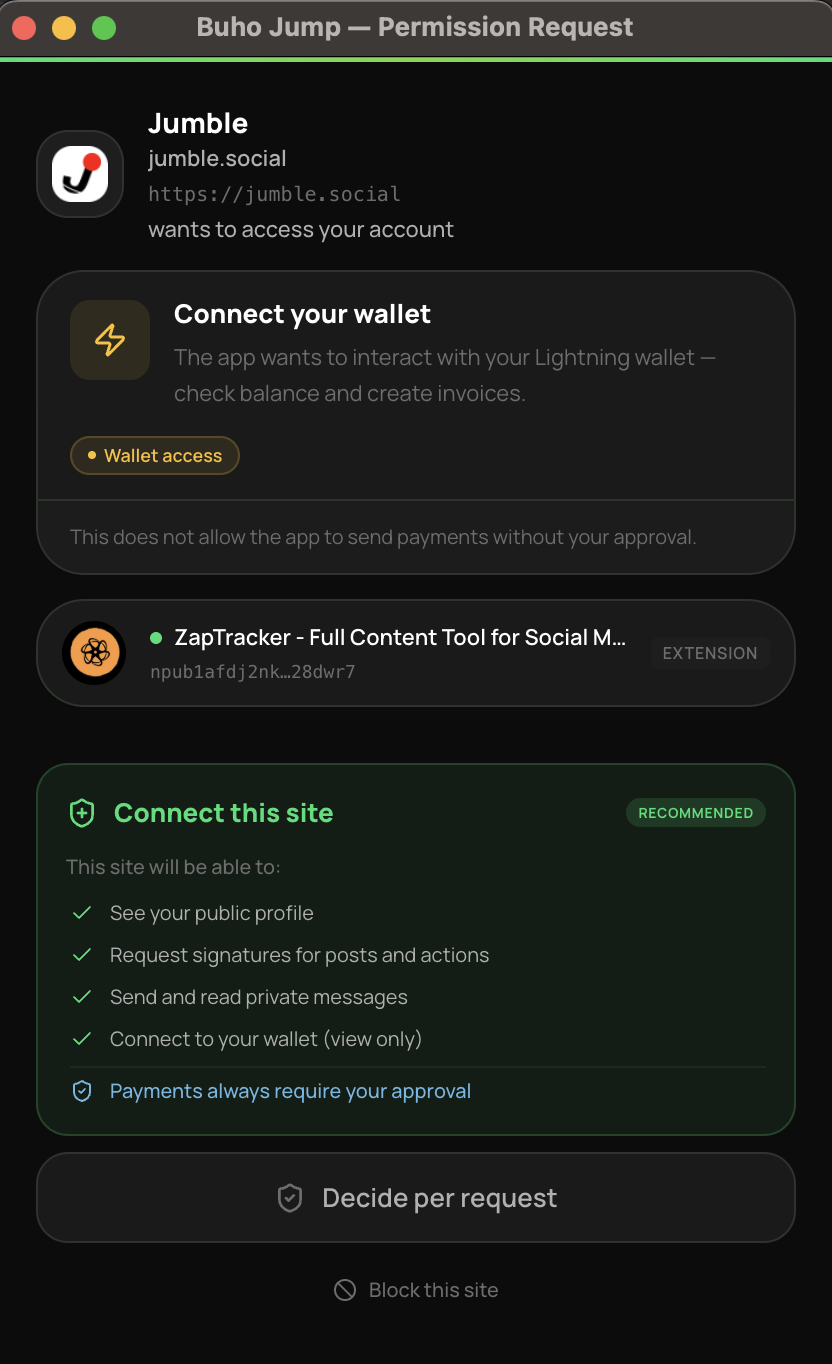
You can:
- Allow this once — grant for this request only
- Allow all — grant all standard permissions for this site (never includes payments)
- Deny — block the request
Payment requests always require individual approval unless you've set a spending limit.
Managing connected sites
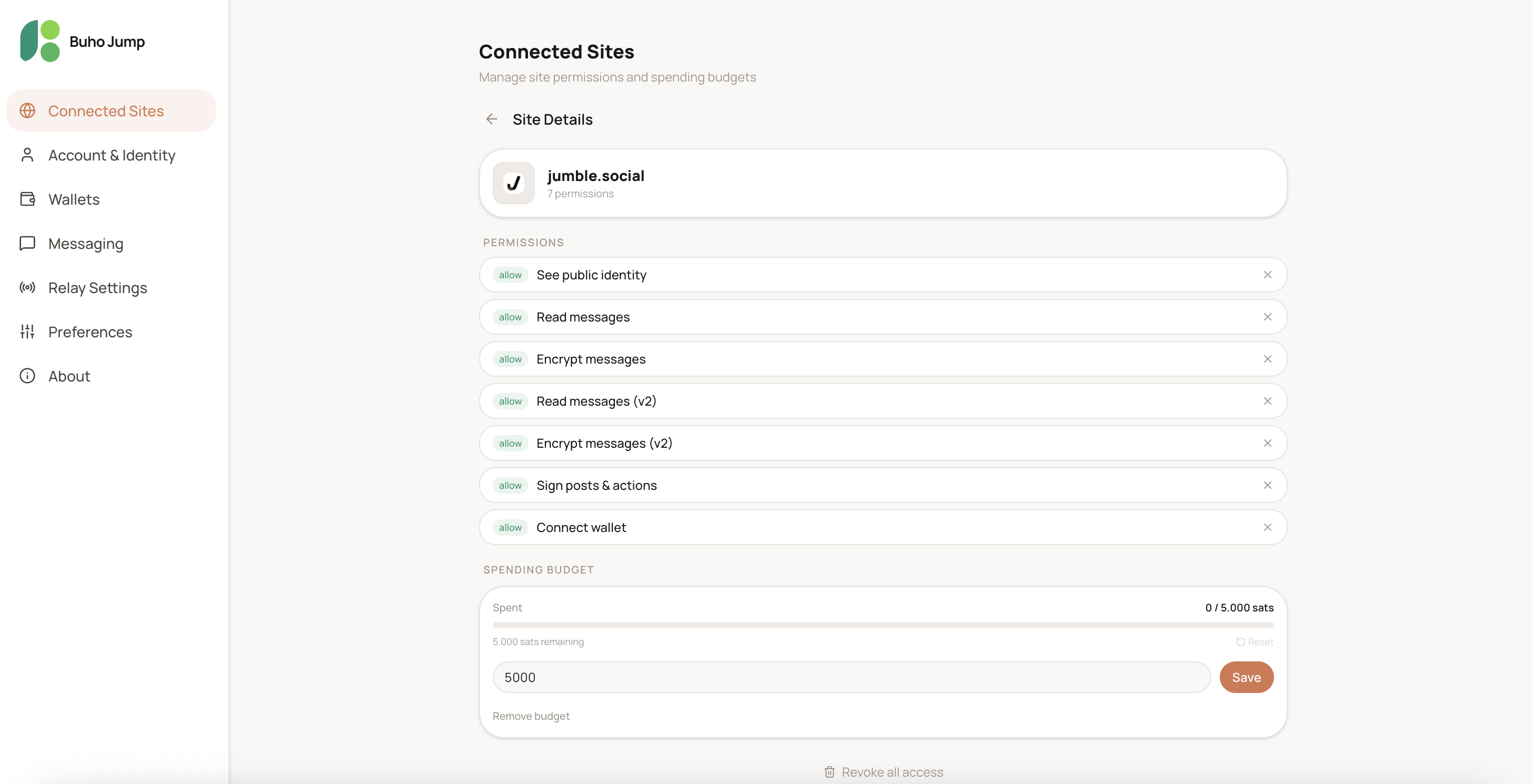
Open Connected Sites from the popup or the browser options page to see every domain that has permissions. For each site you can:
- See which permissions are granted or denied
- Adjust the spending limit
- Reset the spent counter
- Revoke individual permissions
- Revoke all access (removes permissions and spending limit)
The site budget bar
When you open the extension while on a website, the wallet tab shows a compact bar at the top with that site's spending status:
- Has a limit — progress bar showing how much has been spent
- No limit set — subtle prompt to set one
- Nearly exhausted — yellow/red warning
- Used up — payments go back to requiring individual approval
Tap the bar to open the full site detail view.
Browser options page
For a full-screen view with search and all sites at a glance, click the open-in-browser icon. Budget status shows inline as colored pills next to each site.